
iPod Tech Notes for TopXNotes
We have found most problems exporting notes from TopXNotes to a classic iPod are fairly simple to solve, once you know the process. These tech notes should help you solve the most common issues. If you need further assistance, feel free to contact us.
Enable iPod Disk Mode
TopXNotes contains features specifically designed for classic iPods. These features all are available only if TopXNotes finds an iPod connected BEFORE TopXNotes is launched and if your iPod is mounted as a disk on your desktop. To mount an iPod as a hard disk on your desktop, your iPod's Disk Mode must be enabled. This is done in iTunes (version 7) or later.
If you are using iTunes 7.0 or higher, "Enable disk use" is in the right hand column of the Device Summary Panel. To see it, run iTunes (and click on your iPod in the panel on the left, then check Enable disk use, as shown below.
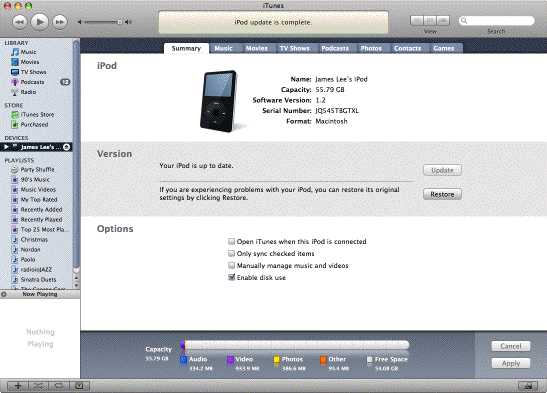
You should see your iPod appear on our desktop like another disk. If it does not, quit iTunes and restart your Mac.
iPod Export Tips
TopXNotes Export button is not enabled?
If you have identified a note as an iPod note, but the export button (the one with the iPod icon in the bottom toolbar) is not enabled, make sure the iPod is mounted, and the iPod's icon is visible on your Mac's desktop before you launch TopXNotes. If the iPod icon is NOT visible on your Mac's desktop, quit TopXNotes and follow the instructions above.
Selecting a note for export to iPod
Select "iPod Note" from the Category menu in TopXNotes to mark a note for export to iPod. Press the "Export" button or use the "Export to iPod menu item in the File menu to export all notes marked as an iPod note to your iPod.